- Type
- Lesson plan
- Subject
- Computer Science & Coding
- Topics
- Technology
- Grade
- Early years (Pre-K to Grade 2)Primary (Grades 3-5)Middle school (Grades 6-8)High school (Grades 9-12)
- Ages
- All ages
- Includes
- Quiz: 5 questions
How can students and educators host, configure, and collaborate effectively within a shared Minecraft world?
Overview
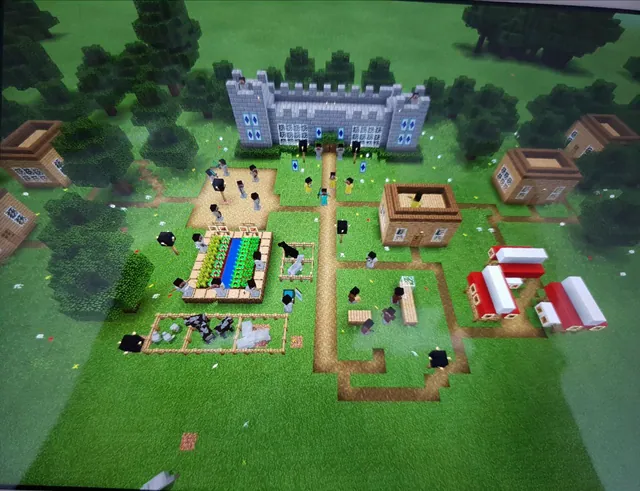
Multiplayer gameplay connects learners in shared virtual spaces whether they are physically seated in the same classroom or participating remotely from home. By working within the same world, students strengthen communication, teamwork, and collective problem-solving skills across various subject areas.
This lesson introduces educators and students to the requirements, hosting procedures, and configuration settings needed to run shared sessions in Minecraft: Education Edition. It also explores built-in features such as the Camera, Book and Quill, export tools, and Immersive Reader that support inclusive teamwork and documentation.
Learning objectives
By the end of this lesson students will be able to:
- Identify the core requirements and settings needed to host a multiplayer session.
- Demonstrate the steps to host and connect to a shared world in Minecraft: Education Edition.
- Utilize built-in documentation tools such as the Camera and Book and Quill to record collaborative work.
- Explain how accessibility features like Immersive Reader assist diverse learners during multiplayer tasks.
Blocks and items used in this lesson


Key vocabulary
- Multiplayer Mode
- A setting in Minecraft that allows multiple players to enter and interact inside the same world at the same time.
- Host
- The user or device that opens and runs a world so other participants can connect to it.
- Book and Quill
- An in-game item used by students to write text and record reflections or notes.
- Immersive Reader
- A built-in accessibility tool that assists with reading text, comprehension, and language translation.
- Formative Assessment
- Ongoing checks of student understanding during learning, supported here by tools like the Camera.
Before class
Lesson sequence
- Introduction to Shared Worlds
Introduce the concept of multiplayer mode, explaining that students can work together whether they are in the classroom or joining remotely. Discuss how shared worlds require clear communication, cooperation, and respect for group goals.
- Technical Requirements and Hosting
Guide students through the necessary requirements and configuration steps to host or join a multiplayer game. Walk through the host settings and explain how participants locate and enter the session.
- Collaborative Challenge
Direct joined groups to launch a chosen build challenge or activity from the lesson library. Have team members divide responsibilities to solve problems and construct solutions together.
- Documenting with In-Game Tools
Ask students to document their group work using the Camera and the Book and Quill. Remind learners that Immersive Reader is available to assist with reading or translating in-game text.
- Export and Reflection
Instruct teams to prepare their recorded progress using export options to share their accomplishments outside the game environment. Bring the class together to discuss how working collaboratively influenced their problem solving.
Assessment: success criteria
- Student successfully joins or hosts a multiplayer world using correct configuration steps.
- Student works collaboratively with peers to complete a designated shared task.
- Student gathers evidence of teamwork using the Camera and Book and Quill.
- Student exports completed records or artifacts to present learning outside the game.
Differentiation
Allow learners needing reading or translation assistance to utilize the built-in Immersive Reader when reviewing prompts and menus.
Assign advanced students the role of session host responsible for configuring world settings and assisting peers with connection procedures.
Knowledge check
5 questions to check understanding after the lesson. Tap an answer to see if it is right; the score appears at the end.
1What primary benefit does multiplayer mode offer students whether in class or remote?
Answer: B. The source states that multiplayer games encourage collaboration, communication, and problem solving in person or remotely.
2Which tool in Minecraft: Education Edition is designed to help students with reading and translation?
Answer: A. Immersive Reader supports reading and translating to foster an inclusive classroom.
3Which of the following items are designated for formative assessment in multiplayer worlds?
Answer: C. The source identifies the Camera and Book and Quill as formative assessment tools.
4Where can educators look for collaborative tasks after configuring a multiplayer world?
Answer: B. The source recommends looking at build challenges and lessons in the Minecraft: Education Edition library.
5How can students present and share their completed collaborative work outside the game?
Answer: C. Export options help students share their work outside the game environment.
Frequently Asked Questions
Can students participate in multiplayer if some are at home and some are at school?
Yes, multiplayer in Minecraft: Education Edition supports collaboration whether participants are physically in the same room or connecting remotely from home, provided connection requirements are met.
What tools can teachers use to assess student work inside a multiplayer world?
Teachers can have students document their progress using formative assessment features like the Camera and Book and Quill, and then share those artifacts using export options.
Adapted from Multiplayer Game Guide by Minecraft Education on Minecraft Education, last updated Apr 10, 2020. This classroom version, the timings and the quiz were written by 9Minecraft Education.