- Type
- Teacher training
- Subject
- Computer Science & Coding
- Duration
- about 30 min (suggested)
- Includes
- Quiz: 5 questions
How can structure blocks be used to capture, frame, and export 3D models of in-game creations for assessment?
Overview
Structure blocks provide educators and learners with a direct mechanism to transform in-game builds into portable 3D files. By isolating and exporting digital artifacts, students can capture evidence of their architectural and design work for portfolios, documentation, and formative assessment outside the game world.
Using Minecraft: Education Edition, teachers switch to Creative Mode with cheats enabled to grant themselves the block via a console slash command. Once placed near a target construction, coordinate inputs allow users to frame a precise slice of their build and export it as an industry-standard GLB file viewable in tools like Paint 3D and Windows Mixed Reality Viewer.
Learning objectives
By the end of this activity students will be able to:
- Switch game settings to Creative Mode with cheats enabled.
- Obtain a structure block using the designated slash command in the chat console.
- Position the structure block and adjust coordinate values to frame a target build.
- Export a framed creation as a 3D GLB file for use in external viewing applications.
Blocks and items used in this lesson

Key vocabulary
- Structure Block
- A specialized block in Minecraft: Education Edition used to capture, preview, and export 3D models of in-game builds.
- GLB File
- A standard 3D file format that stores complete 3D model geometry and textures for external viewing.
- Slash Command
- A text instruction entered into the in-game chat interface to perform administrative tasks or give items.
- Creative Mode
- A game mode offering unlimited building resources and command permissions, required to configure structure blocks.
Before class
Lesson sequence
Suggested timing: about 30 minutes in total.
- Configure Game Mode and Cheats5 min
Open the in-game menu, verify that cheats are enabled, and switch the current game mode to Creative Mode so administrative commands are active.
- Summon the Structure Block5 min
Open the chat window and enter the command /give @p structure_block 1 0 to grant the block. Press the E key to view your inventory and equip the item.
- Position and Frame the Target Build10 min
Place the structure block on the ground next to the creation you want to export. Open the block interface, enter the coordinate offsets, and use the preview display to verify that the selection box captures the intended slice of your build.
- Export and Inspect the 3D File10 min
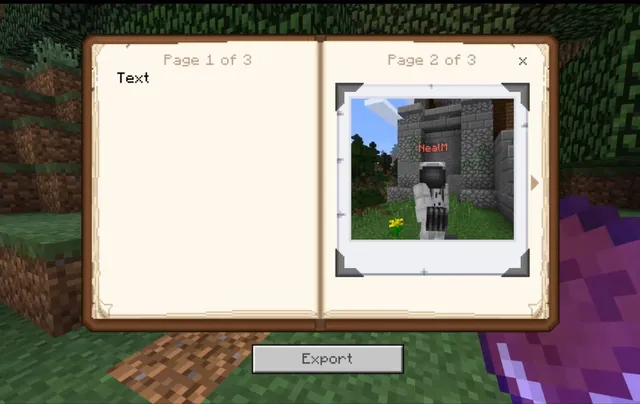
Select the Export option inside the structure block menu to save your creation as a 3D GLB file. Open the saved file in external software like Paint 3D or Windows Mixed Reality Viewer to review the final model.
Assessment: success criteria
- The learner successfully executes the slash command to place a structure block into their inventory.
- The learner places and configures the structure block coordinates so the target model is completely framed.
- The learner exports a valid GLB 3D model file from the structure block interface.
- The learner opens and verifies the exported 3D model inside an external viewer.
Differentiation
Provide the slash command written on a reference card and guide the learner to adjust one coordinate axis at a time.
Have learners open their exported GLB files in Windows Mixed Reality Viewer to inspect their design from multiple 3D angles.
Knowledge check
5 questions to check understanding after the lesson. Tap an answer to see if it is right; the score appears at the end.
1Which game mode must be active to acquire and use a structure block?
Answer: C. Creative Mode with cheats enabled is required to access and operate structure blocks.
2What slash command is used to give a structure block to the nearest player?
Answer: A. The command /give @p structure_block 1 0 places a structure block into the player's inventory.
3Which keyboard key opens the player inventory to retrieve the structure block?
Answer: D. Pressing the E key opens the player inventory interface.
4Which 3D file format is generated when you export from a structure block?
Answer: B. The structure block exports 3D models using the GLB file format.
5Which external application can be used to view the exported 3D model?
Answer: A. Paint 3D and Windows Mixed Reality Viewer are compatible viewers for exported GLB models.
Frequently Asked Questions
Why does the slash command fail to grant a structure block?
Commands will not execute if cheats are turned off. Check the world settings in the in-game menu, ensure cheats are enabled, and verify that you are currently in Creative Mode.
How do you make sure the entire build is captured before exporting?
Adjust the coordinate values within the structure block menu and inspect the preview display to ensure the bounding box encloses every part of the structure you wish to export.
Where can students view their exported 3D creations outside the game?
Students can open their exported GLB files using native 3D viewing tools such as Paint 3D or Windows Mixed Reality Viewer on compatible systems.
Adapted from Learn to Use Structure Blocks by Minecraft Education on Minecraft Education, last updated Aug 22, 2018. This classroom version, the timings and the quiz were written by 9Minecraft Education.