- Type
- Teacher training
- Subject
- Computer Science & Coding
- Duration
- about 50 min (suggested)
- Includes
- Quiz: 5 questions
How can non-player characters be configured to guide student learning and automate tasks in a digital world?
Overview
Non-player characters, or NPCs, act as interactive guides within Minecraft Education. They allow educators to embed lesson goals, conversational prompts, and direct instructional support directly into the virtual environment without needing to be physically present at every station.
By configuring an NPC's appearance, dialogue, external web links, and automated commands, teachers can construct self-guided learning pathways. Non-World Builder students can interact with these characters to read information and access resources seamlessly during class activities.
Learning objectives
By the end of this activity students will be able to:
- Spawn a non-player character using a spawn egg from the inventory.
- Customize the name, skin, and conversational text of an NPC.
- Configure advanced settings to attach URLs and in-game commands to an NPC.
- Differentiate between how World Builders edit an NPC and how non-World Builders interact with it.
Key vocabulary
- NPC
- A non-player humanoid character used to deliver dialogue, ambiance, or lesson instructions.
- Spawn Egg
- An inventory item used to place an entity or NPC into the world.
- World Builder
- A user status that allows an educator to create and modify world elements, including NPC settings.
- Advanced Settings
- The customization menu section where external web addresses and commands are assigned to an NPC.
Before class
Lesson sequence
Suggested timing: about 50 minutes in total.
- Spawning an NPC10 min
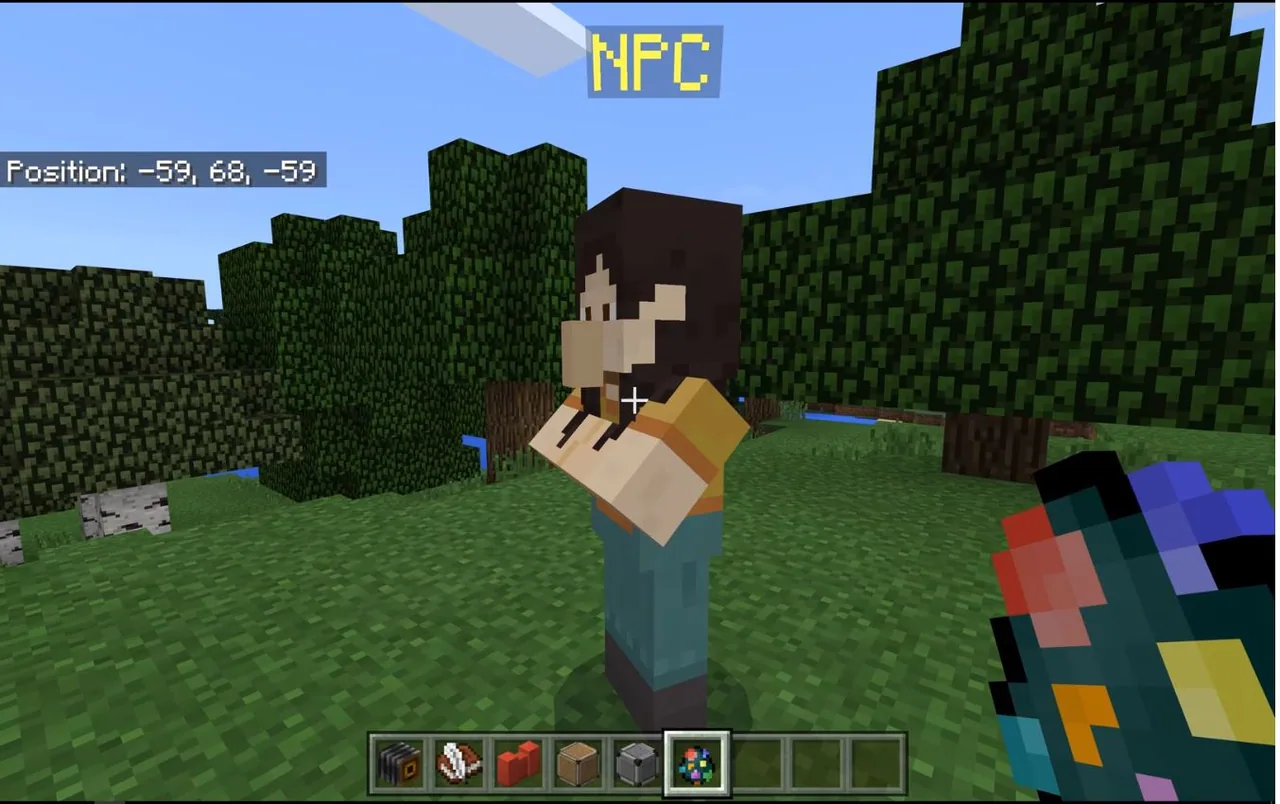
Open the inventory by pressing E and locate the NPC Spawn Egg. Place the egg into your hotbar, select it, and right-click on the ground to spawn the humanoid character.
- Basic Customization15 min
Right-click the spawned character as a World Builder to open the customize screen. Select a visual skin, enter an identifiable name, and type the instructional text or dialogue that learners should read.
- Advanced Programming15 min
Navigate to the Advanced Settings section within the customize screen. Add relevant website URLs for reference material or input specific commands that trigger when learners interact with the character.
- Testing Learner Interaction10 min
Test the character from the perspective of an Operator or non-World Builder user. Verify that the displayed text appears properly on right-click and that the character's name remains visible from a distance, even through walls.
Assessment: success criteria
- The NPC is successfully placed in the world using a spawn egg.
- The NPC displays a custom name, selected skin, and instructional text.
- Advanced settings contain functional URLs or commands as intended.
- Learners without World Builder status can interact with the NPC to view dialogue.
Differentiation
Focus on placing the character and adjusting only the name and displayed text before attempting advanced command configurations.
Incorporate multiple command strings and web links within Advanced Settings to create branching resource hubs.
Knowledge check
5 questions to check understanding after the lesson. Tap an answer to see if it is right; the score appears at the end.
1Which inventory key is pressed to locate and retrieve an NPC spawn egg?
Answer: B. Pressing E opens the player inventory where items like the spawn egg can be selected.
2What visual feature of an NPC remains readable from a distance and through solid walls?
Answer: C. The source notes that the name of the NPC remains visible from a distance, even through walls.
3Where in the NPC customize screen can a teacher attach external website links and commands?
Answer: A. URLs and special commands are configured under Advanced Settings.
4What happens when a non-World Builder student right-clicks on a configured NPC?
Answer: D. When an Operator or non-World Builder interacts with an NPC, they view its displayed text rather than the edit menu.
5Who possesses the ability to repeatedly reopen the customization screen to edit an NPC?
Answer: C. World Builders have permission to re-access and edit the NPC customization menu repeatedly.
Frequently Asked Questions
Can students change the instructions written on an NPC?
No, only users with World Builder permissions can open the customization screen to change names, dialogue, or settings; standard students only see the final text.
Will students lose sight of the NPC if it is placed behind an obstacle?
While the character body may be hidden, the name of the NPC stays visible from a distance, even through solid walls.
Adapted from Learn to Play: Programming NPCs by Minecraft Education on Minecraft Education, last updated Jan 26, 2022. This classroom version, the timings and the quiz were written by 9Minecraft Education.