- Type
- Teacher training
- Subject
- Computer Science & Coding
- Duration
- about 35 min (suggested)
- Includes
- Quiz: 5 questions
How can learners capture and export visual evidence of their work using the Camera?
Overview
Documenting student work inside virtual spaces is an essential part of assessing learning and building digital portfolios. The Camera item gives learners direct control over capturing evidence of their builds, projects, and personal reflections during gameplay.
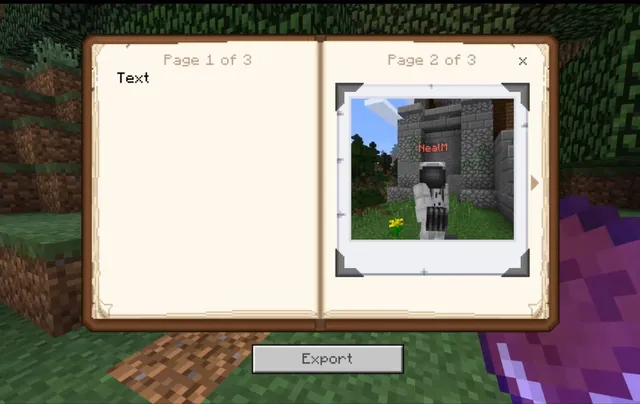
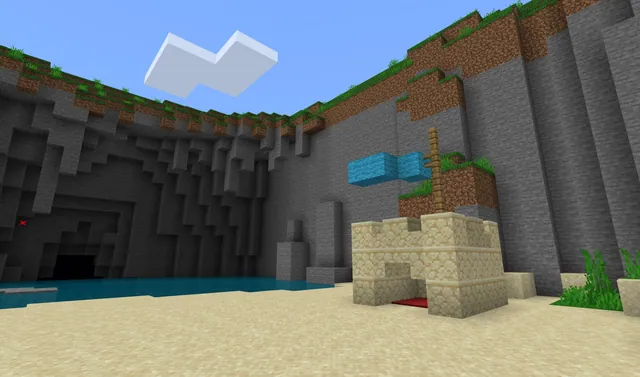
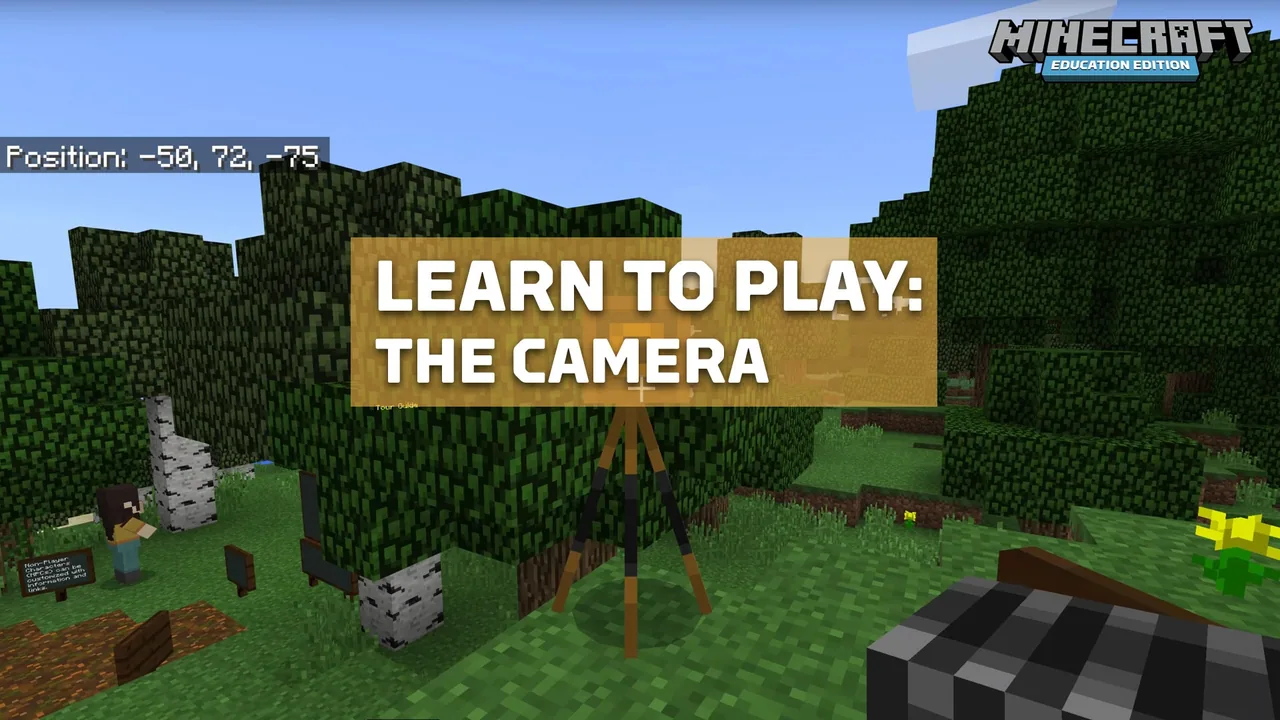
Using Minecraft Education, teachers and students utilize handheld snapshots for immediate first-person records and placed cameras for timed, player-tracking photos that save straight to the in-game Portfolio for export.
Learning objectives
By the end of this activity students will be able to:
- Capture first-person screenshots using the handheld Camera item
- Deploy and activate a placed Camera to take a timed tracking photo
- Identify where captured photos are stored inside the game
- Export photos and Portfolios to submit completed classwork
Blocks and items used in this lesson


Key vocabulary
- Camera
- An in-game item used to take first-person snapshots or placed down to take timed photos.
- Portfolio
- The in-game collection where all captured camera pictures are automatically saved and stored.
- Snapshot
- A first-person still image captured directly from the player view screen.
Before class
Lesson sequence
Suggested timing: about 35 minutes in total.
- Handheld Snapshots10 min
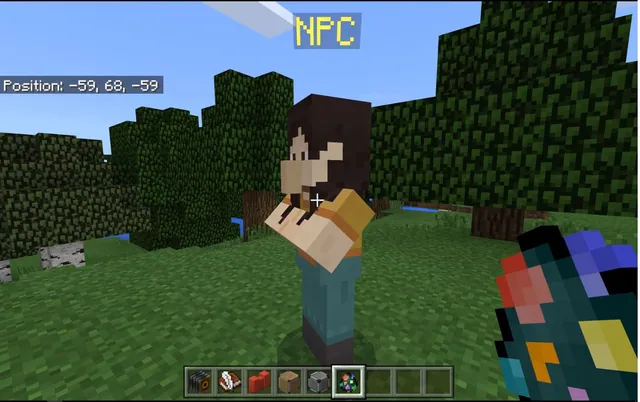
Equip the Camera in your hand. Right-click to immediately capture a first-person picture of your view, which will automatically save into your Portfolio.
- Placed Camera Photos15 min
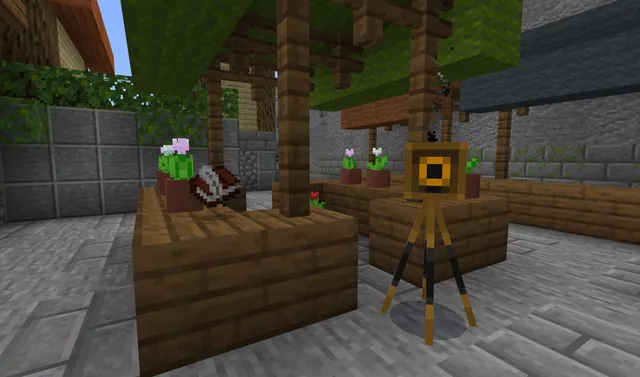
Target an existing block and right-click to set the Camera down in the world. Right-click the placed Camera to trigger a five-second countdown, allowing you to reposition while the lens tracks your movements.
- Replacing and Exporting10 min
Observe that the placed Camera disappears after snapping one image, requiring a new camera placement for additional shots. Access your Portfolio to review and export pictures for your classwork submission.
Assessment: success criteria
- Student successfully captures a first-person image using a handheld Camera.
- Student places and activates a static Camera to take a five-second timed photo.
- Student demonstrates that captured images are saved in the Portfolio.
- Student exports their photos or Portfolio for assignment review.
Differentiation
Have students practice handheld right-click snapshots first before attempting timed five-second placed camera photos.
Challenge students to frame multi-angle documentation of a build using both handheld views and positioned tracking shots.
Knowledge check
5 questions to check understanding after the lesson. Tap an answer to see if it is right; the score appears at the end.
1How do you capture an immediate first-person screenshot using the Camera?
Answer: A. Holding the Camera in your hand and right-clicking takes a first-person snapshot right away.
2What happens when you move around after activating a placed Camera?
Answer: B. Once activated, the placed Camera will track the player as they move during the five-second countdown.
3Where are pictures automatically stored after they are taken?
Answer: C. All photos taken with the Camera are automatically saved into the player Portfolio.
4How long is the countdown timer after you right-click an placed Camera?
Answer: D. Activating a placed Camera starts a five-second timer before the photo is taken.
5What happens to a placed Camera block immediately after it captures a picture?
Answer: C. After capturing one photo, the placed Camera disappears, requiring the user to place a second one.
Frequently Asked Questions
Can students use a single placed Camera to capture multiple pictures in a row?
No, a placed Camera disappears immediately after taking one photograph, so students must place another Camera block for every new timed shot.
How can students hand in the pictures they take with the Camera?
Students can open their in-game Portfolio and export their photos or complete Portfolios to submit their work for class review.
Adapted from Learn to Play: The Camera by Minecraft Education on Minecraft Education, last updated Aug 22, 2018. This classroom version, the timings and the quiz were written by 9Minecraft Education.